- Joined
- 3 Nov 2022
- Messages
- 82
- Reaction score
- 5
- Country

What now please?


Sorry for the delayed response, I have struggled on with it until now as it was working on and off and I haven't needed my computer as much.
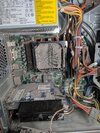
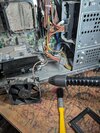
I have opened the side and this is what it looks like:
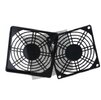

This is an example of a detailing kit, but it doesn't say how big the bits are. I'd say you want no bigger than half an inch.
I would prefer not to use a blower.
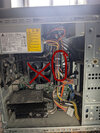
I already took the fans out, one was screwed in from the back and the other just clipped on, it looks pretty grim behind the inside fan.The RAM sticks are circled in red (looks like you have 4). Do not remove the fan with the red X. It is the processor fan and is attached to the processor with thermal paste.
View attachment 375873
As the others have suggested, you need to identify the BIOS. When you first turn on the PC the BIOS will "POST" (power on self test). Hardware problems will often be flagged up during POST. The number of beeps should help you identify what the POST is flagging but those error codes beeps may be specific to the BIOS in question. To enter the BIOS, F1, F2,F10, escape, or del. You need to hit the correct key repeatedly when the the PC is first turned on.
Once POST is completed, the operating system (Windows) will load from the hard drive.
Freezing does sound like a RAM problem. Overheating often tends to result in the computer instantly shutting down.
As others have suggested, Memtest would be a good place to start. Alternatively, remove one or two RAM sticks at a time and see how you get on.

Surely you mean the heatsink, not the fan.Do not remove the fan with the red X. It is the processor fan and is attached to the processor with thermal paste.
It's not workingHave you backed up your files, either onto an external harddrive or online, or better both?
If not, do it now whilst it is still working and before you touch anything.
Surely you mean the heatsink, not the fan.