Texecom Head bang!

Joined
17 Feb 2008
Messages
704
Reaction score
12
Location
Berkshire
Country
United Kingdom
Having connected to coms port and successfully got wintex going, I am now trying to find in the manuals what all the options mean and what i need selected. However either I am reading the wrong manuals or for some odd reason none of them explain them. Is there a hidden manual somewhere? All i see is "Edit the options as required." Really handy!
 
Last edited:
That's why a proper installed system costs a bit more ....as you have found out it's not just add the devices and throw them on the wall it's down to programming and knowing your house layout ....
Now what do you want to know ?
Start with zones your probably only going to have 3 types , entry exit ( this starts the timer on entry )
Guard access ( this is a zone you need to pass to get to the panel ) guard ...all,the others
All need omit ticking , doors need chime ( if required ) part 1 omit ( typical of the landing detector )
Areas just A for all ( for a start ) then zone descriptor
This is just a start for now
 
Thanks have found a description of what i was after now, just trying to read and understand. I have entry exit1 and 2 front door back door, which of global timers is used for each (assume it is one of those) so i can set exit and entry time? Bell has defaulted as custom after learning, do i need to tick bell/strobe in custom zones for device? I'm sure it will all make sense with a little guidance and reading, which is much appreciated
 
Last edited:
Area Timers! found it. I assume Guard access is achieved with zone set as guard, then tick Attributes 1 "access"?
 
No guard access is found as a drop down in zone type
Entry exit 1 is the normal, entry exit 2 has a separate timer ....e.g. Setting from garage and the door takes longer to open / close
The other thing that catches people out is setting type for area ( A ) default is final door , set as timed or you have to open and close final exit to set
 
The other thing that catches people out is setting type for area ( A ) default is final door , set as timed or you have to open and close final exit to set
Run that by me if you could? I have area A selected on all devices, do i need to set area A to Timed in Area timer options?

Is using attribute 1 an alternative i.e zone set as guard, then tick Attributes 1 "access" is same as just "guard access found as a drop down in zone type"
Have set as you suggest though.
 

Attachments

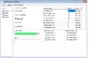
  • timer.jpg
    timer.jpg
    85.7 KB · Views: 127
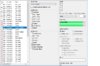
  • guard.jpg
    guard.jpg
    144.4 KB · Views: 148
IMG_1855.PNG Looks ok but you have ticked the entry exit 2 attribute , this will use entry exit 2.time setting if activated in part set , guard access zones start the entry exit in part sets ( normally used in the hallway ) depending on house layout
 
View attachment 138132 Looks ok but you have ticked the entry exit 2 attribute , this will use entry exit 2.time setting if activated in part set , guard access zones start the entry exit in part sets ( normally used in the hallway ) depending on house layout
Ok so I have now set as image

I basically have keypad in lounge, accessed via back door and lounge pir, or front door and stair pir

Wintex auto fills that tick box entry exit 2 attribute
 

Attachments

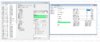
  • zones.jpg
    zones.jpg
    265 KB · Views: 121
Last edited:
its easier for someone to follow it through, when you select a zone in wintex or via the keypad it brings in the default values.

sparkymarka was pointing out that to adjust the part entry timer you would look at entry 2.
 
If I have two doors that can be used as entry/exit have I set it correctly, front door is Entry Exit 1 and back door is Entry Exit 2, both area A with timer set to Timed Access. The PIRs i walk passed are then (2 of them) set to Guard access as per last image?
 
Thanks, So if set to entry/exit rather than timed exit, the difference is you have to open/close door to activate rather than it be timed?
 

If you need to find a tradesperson to get your job done, please try our local search below, or if you are doing it yourself you can find suppliers local to you.

Select the supplier or trade you require, enter your location to begin your search.


Are you a trade or supplier? You can create your listing free at DIYnot Local

 
Back
Top