• Looking for a smarter way to manage your heating this winter? We’ve been testing the new Aqara Radiator Thermostat W600 to see how quiet, accurate and easy it is to use around the home. Click here read our review.

Texecom Premier Elite 64-W - com3 help pls

Joined
28 Feb 2025
Messages
40
Reaction score
0
Country
United Kingdom
Hi

I have a smart com connected to my 64-W panel and all works fine with Com1 set to Smart Com and Com 2 set to ComIP. I want to add another ComIP so I can connect with home assistant via mqtt without disrupting the smart com

I have added a ComIP+ to the ribbon cable attached to the digital modem output to give me another port and attached a ComIP to it and wired into network.

It didn’t get an ip address assigned so I assigned one manually and set it in Wintex where I also changed com3 to be ComIP. I can’t connect though.

Is there something else I have to change? Is this even possible on the 64-W where there isn’t the normal port on the side of other panels.

Thanks for taking the time to read and hopefully help me out.

Matt
 
Assign a different port number default is 10001 and the smart coms com ip will be using that port.

So set to 10002 for example on com 3 and make sure the ip address is seperate.

if that’s setup then may need to look into a little more, from memory it will need the UDL passcode to authorise things, which HA integration are you using?
 
Thanks for this. I did try with 1002 but no joy so switched back figuring that if it is a different ip port maybe shouldn’t matter.

I am using texecom2mqtt. It works fine connecting to the ip of com2 which the smartcom is connected to and is also set to comip but by sharing it I’m not getting alerts properly as the mqtt connection and the smartcom are both using it.

I guess my first question is whether this should work, like is it right to connect things like I describe via the digi modem ribbon cable etc.

Then I think I need to look into why it didn’t get an ip address without my assigning it, maybe that is normal, I don’t know.

I also need to check the lights on the comip for clues but it is inside the alarm box and I won’t be able to start having a look again until Monday.

Udl is set. Unless this is a per port thing? I think it is for the panel though and this is set and working if I connect to com2 ipcom.
 
No UDL passcode is general.

if the ip address fand ports are different for coms 2 and com 3 in the first instance and correctly programmed then I would next look at program digi and what its using.
 
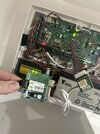
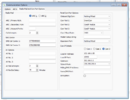
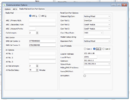
I appreciate you help. I have attached a couple of images of Wintex settings and the physical connections. I do think it is odd that the Com-IP is not getting an IP address automatically. I have assigned one but still think it suggests an issue. Thanks
 

Attachments

  • IMG_5254.jpeg
    IMG_5254.jpeg
    251.8 KB · Views: 64
  • Screenshot 2025-03-03 at 14.58.51.png
    Screenshot 2025-03-03 at 14.58.51.png
    312.2 KB · Views: 63
  • Screenshot 2025-03-03 at 14.55.44.png
    Screenshot 2025-03-03 at 14.55.44.png
    316 KB · Views: 62
I dont see the arc settings for the smart com and it appears that the baud rate for com 2 hasn't been set higher for the comip, other than that nothing jumping out at me.
 
Smart com is working fine and com 1 and com 2, both plugged into the smart com seem to be fine. I can make adjustments if you think necessary.

I really do think there is an issue with the network side of this, the comip on com2 is showing up on my network but not negotiating, even the assigned ip doesn’t seem to be getting taken now.

Should it be as easy as just plugging it in as I have and it gets a network address?

Please let me know if there is anything else I can show you. Do you need to see ARC settings or should I adjust the baudrate of the issue is with the comip on com3 not the smartcom?
 
The baud rate can only be adjusted on com2

I will see if I have an old profile from memory we kept the smart com on standard ip and port and com3 for the other com ip and port.

Can’t remember if the lantronix device installer was used to change the com ip details or just done from the panel.

The ARC settings is how the com ip part of the smart com and the other com ip is told to communicate on which com port.

The same rules apply when using say control4 integrations.

There are so me threads on here and on the Texecom form as well as on the HA page for the integration.
 
To trouble shoot have to look at what we know and what we don’t that may be influencing the situation.

Can you see the lantronix device in the list of devices on the router?
 
So I think the issue is with the comic not getting an ip address. I have a pretty large unified set up and it is showing up but not with any address assigned. I have tried assigning manually to the Mac of the device but it still doesn't take the ip address. My unified system knows it is plugged in and what it is but there is no network connection. Very odd. I haven't experienced anything like that before. Until I can sort that I guess other troubleshooti9ng is pointless. Any suggestions where to start with getting this to show up on the network - does it need to be initialised somehow?
 
lantronix device installer is where i would start as that will look for its devices and you can log into the lantronix device and change settings but ts been a long time since i have used the device installer and the Texecom login for the device.
 
Okay - I solved it - the issue was with the ComIP. I had to reboot the panel - turn off ac and pull the battery to get it to recognise and imitate the ComIP properly. The advice came from ChatGPT and worked! Nothing else was changed.
@secureiam thanks for your help also.


Here was the advice for reference and anyone else looking for help with this.

1. ComIP modules require a reboot to apply new settings:

• When changing Com Port Setup (e.g., setting COM3 to ComIP), the panel needs to reinitialize communication with the module.

• A reboot forces the panel to rescan and properly detect the ComIP, ensuring it requests an IP address via DHCP or applies the static IP settings correctly.

2. A power cycle can resolve communication issues:

• If the ComIP module remains unresponsive or does not obtain an IP address, a power cycle (turning the panel off and on) often resolves this issue.

• This is particularly important when using ComPort+, as it converts the onboard digital communicator into a COM port, and the system needs to re-recognize the hardware setup.


How to Properly Restart the Panel:

1. Power down completely:

• Disconnect mains power (turn off the circuit breaker or unplug the transformer).

• Disconnect the backup battery in the panel.

2. Wait 10-20 seconds to fully discharge.

3. Reconnect power in this order:

• First, reconnect the battery.

• Then, restore mains power.

4. Wait for the system to fully boot (typically within 1-2 minutes).

5. Check ComIP Status:

• View Show IP Addresses in UDL/Digi Options on the keypad.

• Check your router’s DHCP table for a newly assigned IP (if using DHCP).

• If using a static IP, test connectivity via ping or Wintex.


When to Reboot the Panel:


After setting up COM3 as ComIP for the first time.

If the ComIP does not receive an IP address (LEDs indicate power but no network activity).

After making changes to IP settings (DHCP/static).


If, after restarting, the ComIP still does not receive an IP, double-check the panel’s Com Port Setup and IP configuration, ensuring the correct COM3 settings are applied. Let me know if you need further clarification!
 
glad its sorted, lantronix device installer would see where it was on the network or if it can be seen on the network, it should also be seen on the router to be fair. Occasionally you see the ip on the lantronix device isn't in the same range as your own network.

you can also use fing or advanced ip scanner to see what's what with the network and what you should be able to see.

the reboot option sometimes and some times doesn't pull in the ip details, depends on the issue.

You can in setup modules look at the ip address and clear it out for that port. so its empty and it goes through initialisation , sometimes it helps to power cycle the com ip and as a last resort power cycle the panel. leaving it time to complete is often what's missed by those in a rush.
 

If you need to find a tradesperson to get your job done, please try our local search below, or if you are doing it yourself you can find suppliers local to you.

Select the supplier or trade you require, enter your location to begin your search.


Are you a trade or supplier? You can create your listing free at DIYnot Local

 
Back
Top