Hikvision doorbell camera

Joined
15 Nov 2009
Messages
47
Reaction score
0
Location
Lincolnshire
Country
United Kingdom
Currently got three wall cameras which worked fine, all just plugged into the NVR and using a screen and mouse (no PC involved) all seem to have work including on the hikvision app.

I bought the DS-KV6113-WPE1(C) doorbell camera, and can’t seem to set it up.

Watch loads of videos, so downloaded SADP tool, where I can see the camera but when I use the DHCP it doesn’t do anything to find a new IP address. I manually put in an IP address (the next number along, in line with the other three cameras). It then says to double click the IP address which takes you to the hikvision web access, but doesn’t. But in fairness if I double click one of the other three cameras they don’t too.

I then downloaded ivms-4200 as per what the videos were saying.

I can see the other three cameras, but not this one.

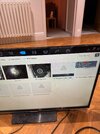
If I go back to just using the screen again, I can see the other three cameras but not this one.

I’ve been trying all day and getting nowhere, is there anything else I can try?
Thanks
 
It’s hard to say, as your following things properly allegedly but I can’t see where things are going wrong for.

Device is powered and paired onto your WiFi?

From SADP tool you should be able with the password set the ip address and gateway.

Is the problem you can use on hik connect but can’t get it to work on the NVR?
Do you have the indoor station also?

Been a while since I last did one, and recall there were a few issues, setting it up when on the customers site.

Getting onto the M series NVR was difficult, and had to do a lot of faff even had Hikvision support login to my laptop on site, I was lead to believe these issues were addressed some time ago now mind.
 
Thanks for your reply

To answer your questions-
The NVR is plugged straight into the router using an Ethernet cable, the laptop is using WiFi from the same router. The laptop is plugged into the back of the NVR via an Ethernet cable along with the 4 cameras.

I can’t see the new camera on the Hik-Connect, the NVR screen or ivms. Only on sadp.
Sadp is not choosing a new IP address. I can only do it manually.

I do not have a door station as apparently this model doesn’t need one and can work directly with hik connect.

Thanks
 
What IP address are you putting into the door bell ? As the plug and play cameras may have an address that’s not your routers address range
 
I am just putting the next number along from the last camera ie
Xxx.xxx.xxx.2
Xxx.xxx.xxx.3
Xxx.xxx.xxx.4
One thing I did notice was on the other three cameras the gateway was 0.0.0.0 but when I change the doorbell one to the same, it didn’t like. it so left it at 192.0.0.1.
The only other thing I’ve noticed was the other cameras had 8443 under ‘enhanced SDK service port’ but the doorbell just says N/A.
 
Ok is the ip range one of these for your existing cameras
192.168.0.0
192 .168.1.0
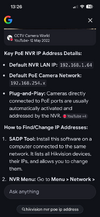
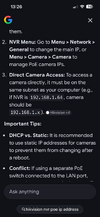
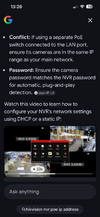
These are the most common ranges for most home routers , the cameras if plugged into a POE dvr with be completely different , you need to address your door camera to one of your router ranges eg 192.168.0.250 , then set one of the channels on the dvr to use your router range ( in other words it’s not using a plug and play address )
 
As an example
 

Attachments

  • IMG_6640.png
    IMG_6640.png
    377.1 KB · Views: 5
  • IMG_6641.png
    IMG_6641.png
    376.5 KB · Views: 5
  • IMG_6642.png
    IMG_6642.png
    682.6 KB · Views: 6
Yeh your doorbell is not connected to the NIC of the NVR like the other cameras, this is not accessible from the home network, u need to address it on the LAN, then add it manually on your NVR which is connected to the LAN
 
If you run CMD and type ipconfig on your pc u will beable to see the ip adress of your computer, subnet mask and default gateway. U will need to give the doorbell an ip on this range with the subnet and gateway the same.
 

If you need to find a tradesperson to get your job done, please try our local search below, or if you are doing it yourself you can find suppliers local to you.

Select the supplier or trade you require, enter your location to begin your search.


Are you a trade or supplier? You can create your listing free at DIYnot Local

 
Back
Top